
Reviews
Logitech MX Master 3: Why This Wireless Mouse Could Transform Your Workflow
If you’ve ever wondered whether a computer mouse could actually change the way you work, the Logitech MX Master 3 may surprise you. At first glance, it looks like just another premium wireless mouse. But spend a few hours using it, and you’ll realize it’s a purpose-built productivity powerhouse designed for people who live and breathe multitasking.
In this in-depth review, I, TaoThich Review, will walk you through every detail of the Logitech MX Master 3—its design, features, performance, strengths, and limitations—so you can decide whether it’s worth the $99.99 investment.
Mục lục bài viết
- Why the Logitech MX Master 3 Matters
- Design and Comfort: A Mouse That Feels Like an Extension of Your Hand
- The Revolutionary Electromagnetic Scroll Wheel
- Buttons and Gestures: Eight Inputs, Countless Possibilities
- Sensor Performance: Smooth on Any Surface
- Connectivity: Multi-Device Mastery
- Battery Life and Charging: No More Micro-USB
- Software and Customization: Unlocking True Productivity
- Real-World Use Cases: Who Is the MX Master 3 For?
- Limitations: Where the MX Master 3 Falls Short
- Comparison: MX Master 3 vs. MX Master 2S
- Verdict: A Productivity Powerhouse Worth the Investment
- Final Thoughts
Why the Logitech MX Master 3 Matters
The MX Master series has long been a cult favorite among productivity professionals, creative designers, and even casual power users. Logitech’s flagship line has consistently pushed the boundaries of what a non-gaming mouse can do.
The Logitech MX Master 3 keeps the tradition alive by introducing a redesigned scroll wheel, more intuitive buttons, a USB-C quick-charge system, and best-in-class ergonomics. At the same time, it stays true to the winning formula that made its predecessors stand out: unmatched comfort, smooth tracking, and exceptional versatility across multiple devices.
Design and Comfort: A Mouse That Feels Like an Extension of Your Hand
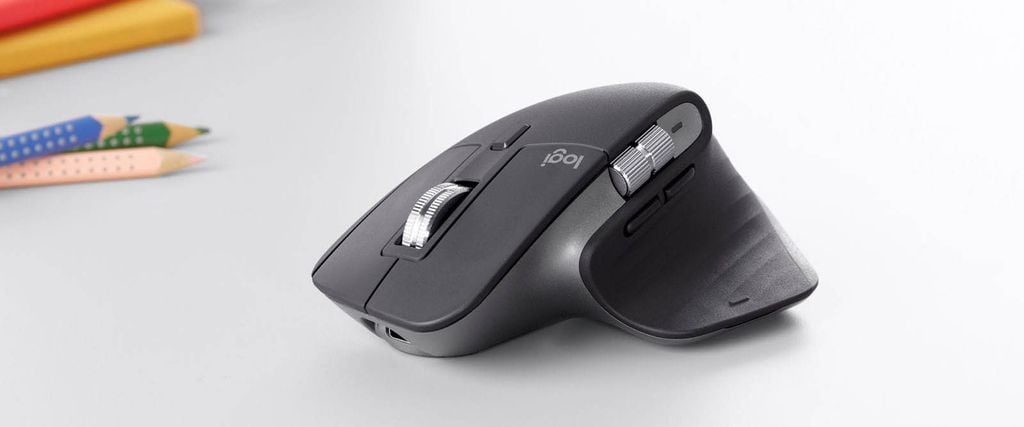
One of the first things you’ll notice about the Logitech MX Master 3 is its sculpted design. At 2 x 3.3 x 4.9 inches, it has a pronounced “hump” that might look awkward in photos but feels incredibly natural in hand.
The thumb rest and large contour encourage a relaxed grip, reducing strain during long workdays. Compared to slimmer mice or the generic models bundled with laptops, the MX Master 3 feels like a luxury ergonomic upgrade.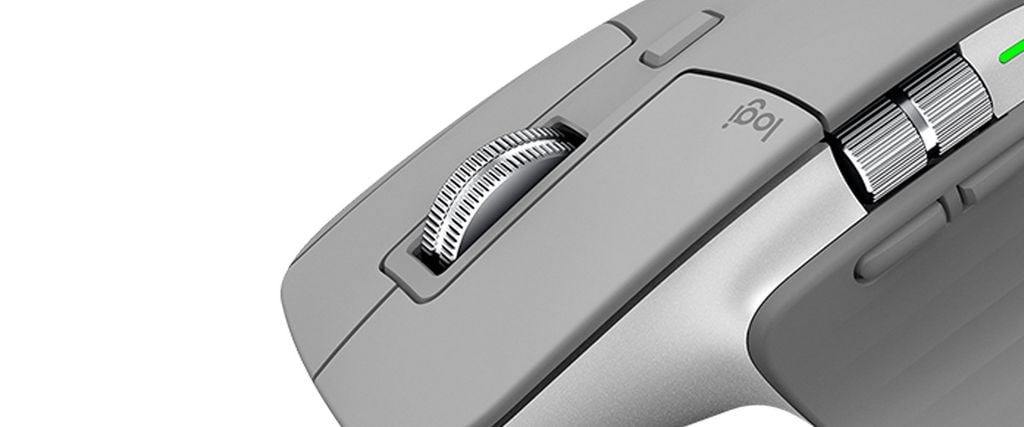
The placement of buttons is also thoughtful: you get two thumb buttons (back and forward) that are larger and more distinct than in the previous generation, plus a small raised gesture button on the wing. The shape ensures that you don’t accidentally press the wrong key, even when switching quickly between tasks.
The Revolutionary Electromagnetic Scroll Wheel
The headline feature of the Logitech MX Master 3 is its brand-new electromagnetic scroll wheel. Logitech calls it “MagSpeed,” and once you try it, you’ll wonder why other mice don’t offer the same technology.
Instead of using mechanical clicks, magnets control the wheel’s resistance. Scroll slowly, and you’ll feel subtle, bouncy ticks with each line. Flick the wheel, and the resistance drops away, letting you zip through thousands of lines or massive webpages in seconds.
This dual-mode scrolling combines precision and speed better than anything else on the market. For coders, editors, or spreadsheet warriors, the MagSpeed wheel is a genuine productivity booster.
Buttons and Gestures: Eight Inputs, Countless Possibilities
The Logitech MX Master 3 isn’t just a three-button mouse. It offers eight customizable inputs:
- Standard left and right click
- The MagSpeed scroll wheel (clickable)
- A dedicated button below the wheel for scroll mode switching
- Two side buttons (back/forward)
- A horizontal side scroll wheel
- A gesture button
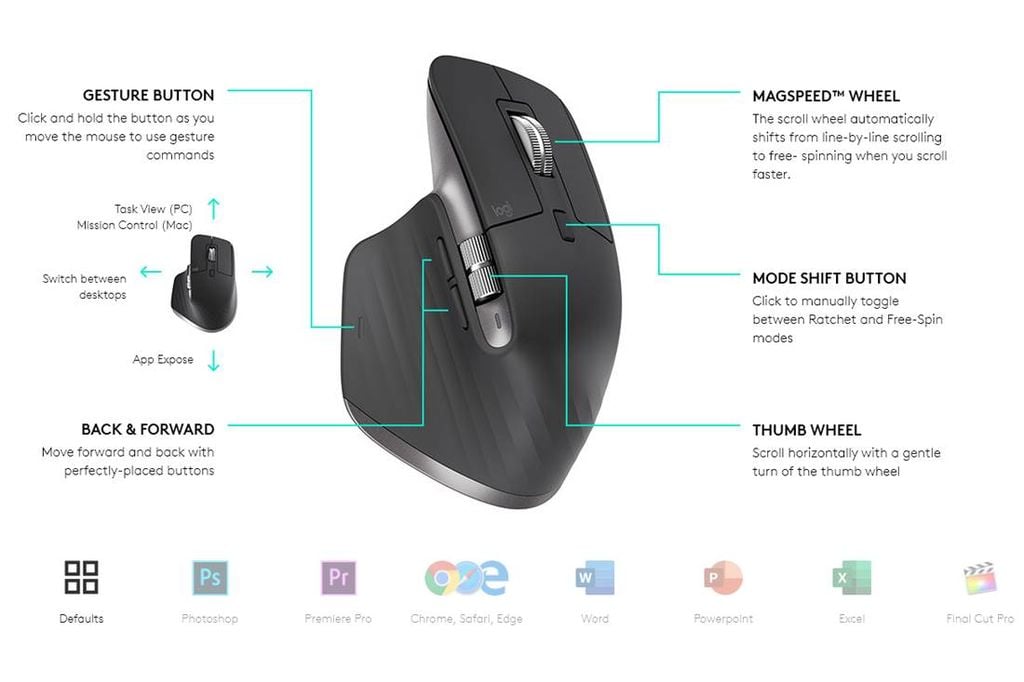
The side scroll wheel is particularly useful for navigating wide spreadsheets, timelines in video editing software, or creative design canvases. Meanwhile, the gesture button acts like a “modifier key”: hold it and move the mouse up, down, left, or right to trigger up to four more shortcuts.
Through Logitech’s Options+ software, you can reassign each button for specific applications. For example, you can map Photoshop brush size to the side wheel, set Chrome tabs to the gesture directions, and configure Excel macros to the side buttons. The level of control is astonishing, yet the software makes it accessible even for non-technical users.
Sensor Performance: Smooth on Any Surface
Like its predecessor, the Logitech MX Master 3 uses Logitech’s Darkfield sensor. It tracks at up to 4,000 dpi and can even function on glass surfaces—a rare but handy feature for people who use glass desks or conference tables.
In practice, the sensor performs flawlessly. Whether working on wood, plastic, or even fabric, cursor tracking remains smooth and precise. While some gaming mice boast dpi ratings as high as 16,000, most professionals don’t need that kind of speed. For productivity work, the MX Master 3’s sensor is more than sufficient.
Connectivity: Multi-Device Mastery
The MX Master 3 connects wirelessly via either Bluetooth or Logitech’s 2.4GHz Unifying USB dongle. What sets it apart is its ability to connect to three devices simultaneously. With a quick press of the switch on the underside, you can move from your desktop PC to your laptop to your tablet instantly.
Even better, Logitech’s Flow software enables seamless cross-device control. That means you can move your cursor from a Windows PC to a MacBook, copy text or files on one system, and paste them directly onto the other—all using the same mouse. For professionals working across platforms, this is game-changing.
Battery Life and Charging: No More Micro-USB
Battery life is another area where the Logitech MX Master 3 excels. Logitech claims up to 70 days of use on a single charge, and real-world testing shows that this estimate is accurate. Even heavy users won’t need to think about charging more than once every two months.
When it’s time to recharge, the MX Master 3 uses a modern USB-C connection. Not only does it fully charge in about two hours, but just one minute of charging can provide up to three hours of use. And because the port is located at the front of the mouse, you can continue working while charging—just like a wired mouse.
Software and Customization: Unlocking True Productivity
Logitech’s Options+ software is where the MX Master 3 truly shines. Out of the box, the mouse works fine, but customization elevates it to another level.
You can configure app-specific profiles so the same button does different things depending on the program. For example:
- In Chrome: side buttons switch tabs, side wheel scrolls horizontally.
- In Photoshop: side wheel adjusts brush size, gesture button triggers undo/redo.
- In Excel: gesture directions handle copy/paste or navigate sheets.
Even non-technical users will find the software intuitive, with drag-and-drop mapping and preset templates for popular apps. For power users, the depth of customization is nearly limitless.
Real-World Use Cases: Who Is the MX Master 3 For?
The Logitech MX Master 3 isn’t a gaming mouse. It’s not trying to be. Instead, it’s designed for:
- Office professionals who live in spreadsheets, documents, and presentations.
- Creative professionals like designers, video editors, and photographers who need precision and quick navigation.
- Programmers and developers who benefit from multiple shortcuts and smooth scrolling through long code.
- Multi-device users who regularly switch between PCs, laptops, and tablets.
If you fall into one of these categories, the MX Master 3 can significantly boost your productivity.
Limitations: Where the MX Master 3 Falls Short
No product is perfect, and the Logitech MX Master 3 has some limitations worth mentioning:
- Price: At $99.99, it’s not cheap. While worth it for productivity users, casual users may balk at the cost.
- Right-hand only: Left-handed users are out of luck, as Logitech has not released an ambidextrous version.
- Not built for gaming: While responsive, it lacks the ultra-high polling rates and dpi needed for competitive gaming.
- Occasional lag: When connected to multiple devices simultaneously, some users report minor latency.
These downsides don’t disqualify the MX Master 3, but they are important to consider depending on your needs.
Comparison: MX Master 3 vs. MX Master 2S
If you already own the MX Master 2S, is the upgrade worth it?
- Scroll wheel: The electromagnetic MagSpeed wheel is the biggest reason to upgrade—it’s faster, smoother, and more versatile.
- Buttons: Larger and more distinct side buttons improve usability.
- Charging: USB-C quick charging is a welcome modern update.
- Design: Slightly refined, but ergonomics remain similar.
If you loved the MX Master 2S, you’ll find the 3 a meaningful but evolutionary upgrade. If you skipped the 2S and still use an older MX or generic mouse, the 3 is a massive leap forward.
Verdict: A Productivity Powerhouse Worth the Investment
After weeks of testing, I can confidently say that the Logitech MX Master 3 is the best productivity mouse you can buy today. From the MagSpeed scroll wheel to multi-device connectivity, it’s engineered to save you time, reduce effort, and make daily tasks smoother.
Yes, it’s expensive. And yes, it’s right-hand only. But for serious professionals, creatives, or anyone who spends 8+ hours a day on a computer, the value is undeniable.
As TaoThich Review, I’ve tested countless peripherals over the years, and few have left as strong an impression as the Logitech MX Master 3. It’s not just a tool—it’s an investment in productivity, comfort, and efficiency.
Final Thoughts
The Logitech MX Master 3 sets the gold standard for office and creative mice. While gaming mice chase higher dpi numbers and flashy designs, Logitech focuses on real-world productivity enhancements. The result is a mouse that feels indispensable once you’ve used it.
If you’re on the fence, ask yourself this: how much is your time and comfort worth? If the answer is “a lot,” then the Logitech MX Master 3 is the best $100 you can spend on your work setup.